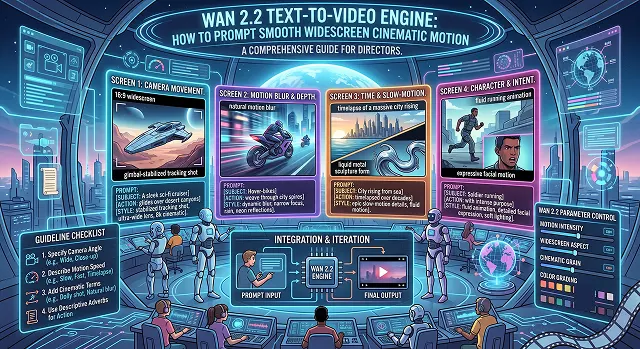
The open-source AI video landscape has taken a massive leap forward with the release of the Wan 2.2 Text-to-Video engine. Designed on a highly optimized Mixture-of-Experts (MoE) and Diffusion Transformer structure, Wan 2.2 has received high praise for its accurate physical simulation capabilities and cinematic-grade aesthetic controls.
On the other hand, many artists find it hard to cope with the typical "AI look," where frames are disconnected and characters move around excessively. To unlock true smooth, widescreen cinematic motion out of Wan 2.2, you have to build your text inputs using the model's precise prompting language.
The fix is prompting Wan 2.2 the way the model actually expects: describing camera moves, lens type, and lighting in plain, specific language rather than vague mood words. Below is a practical, step-by-step guide to writing prompts that consistently produce smooth, cinematic motion.
The Core Blueprint: The Wan 2.2 Advanced Prompt Recipe
Wan 2.2 relies heavily on semantic structuring. Dropping a disorganized string of buzzwords (like "cinematic, 4k, hyperrealistic") confuses the text encoder. Instead, the model responds best to a Five-Element Formula:
Prompt = Subject + Scene + Motion + Aesthetic Control + Stylization
1. Subject Description
Define your primary focus with rich adjectives. Avoid vagueness.
- Weak: "A businessman."
- Strong: "A middle-aged architect with streaks of silver in his hair, dressed in a crisp charcoal suit."
2. Scene Description
Anchor the environment to prevent background floating or temporal distortion.
- Example: "...sitting in a minimalist Tokyo office, large glass windows overlooking a rain-soaked neon cityscape at dusk."
3. Motion Description (The Core Engine)
Adjust height, speed, and even specific dynamics of the action. Combine verbs with particular pacing adverbs (like slowly, smoothly, gracefully) to produce liquid-like moves.
- Example: "...as he picks up his ceramic mug, warm vapors rise elegantly to the ceiling above him."
4. Aesthetic & Camera Control
Explicitly direct the virtual camera lens and lighting environment. This element is what creates the definitive cinematic look.
- Example: "...shooting in 35mm anamorphic format, shallow focus, dramatic dolly zoom effect, low key lighting scheme, volumetric shadows."
5. Stylization
Finalize the visual profile of your scene.
- Example: "...photorealistic, cinematic film aesthetic."
Step-by-Step Production Workflow for Wan 2.2
Whether you are running the 14B model locally in a ComfyUI pipeline or deploying it via high-speed cloud APIs (like fal.ai or Replicate), follow this strict setup sequence to maximize widescreen results:
1. Aspect Ratio Allocation
- Before generating pixels, configure your workspace parameters. Wan 2.2 handles horizontal formats flawlessly. Explicitly set your generation bounds to a 16:9 aspect ratio (or a custom wide format like 2.39:1 anamorphic).
2. Construct the Prompt Recipe
- Build your text prompt using the unified Five-Element Formula. Ensure your camera speed variables match your character actions (e.g., matching a slow camera pan with a slow head turn).
3. Calibrate Generation Samplers
- Configure your backend settings. For smooth transitions, set the model sampling steps to 20–30 steps, apply a Classifier-Free Guidance (CFG) scale of 5 to 6, and utilize the Uni_PC or Simple scheduler paths to guarantee steady motion computation.
4. Temporal Assessment & Upscaling
- Review the raw 5–6 second video output frame-by-frame. Check the frame edges for any flickering lines. Pass the clean master clip through a temporal-aware video AI upscaler to bump the resolution cleanly to a crisp 4K finish.
Cinematic Camera Movement
Wan 2.2 Optimization · Prompt Architecture Constraints
| Cinematic Motion Goal | Exact Prompting Modifiers to Add | Why It Works in Wan 2.2 |
|---|---|---|
| Eliminate Jitter & Warp |
"Slow, measured camera tracking shot,"
"Steadycam motion"
|
Instructs the model's temporal layers to maintain deep geometric background stability across frames. |
| Create 3D Depth |
"Anamorphic lens, slow dolly zoom,"
"Parallax scrolling"
|
Reconstructs foreground and background elements at distinct spatial speeds, emphasizing the widescreen canvas. |
| Control Fluid Dynamics |
"Slow-motion 24fps, fluid air dissipation"
|
Slows the physical rendering speed of particle systems (like smoke, rain, or fire), preventing pixelated explosions. |
| Maintain Character Focus |
"Slow subtle facial micro-expressions,"
"Smooth turn-taking movement"
|
Prevents aggressive, rapid joint warping or anatomical morphing on human subjects. |
Request A Custom AI Video
Tell us what you're trying to create and we'll point you to the right tool — or help you set it up.
Deep Dive: The Core Wan 2.2 Model Architectures
When deploying Wan 2.2 locally or via enterprise cloud configurations, choosing the correct weights is critical for VRAM efficiency and output stability:
- Wan 2.2-TI2V-5B (Text/Image-to-Video): This is definitely the best sweet spot for indie developers. This model has fewer parameters compared to the huge 14B models and thus is designed to run on consumer devices such as an RTX 4090 or even a top-of-the-line MacBook Pro with complete physical consistency.
- Wan 2.2-T2V-A14B (Advanced Cinematic): Perfect for production houses. Boasting 14 billion parameters trained on billions of multi-modal video arrays, it delivers elite 3D spatial alignment. It handles photorealistic human features and complex atmospheric changes perfectly, though it requires a higher VRAM profile to generate smoothly.
- Wan 2.2-S2V-14B (Voice-to-Vision): A specialized audio-driven model. It allows you to feed a text prompt, an anchor image, and a raw voiceover track into the same token pipeline. The AI dynamically calculates lip-sync physics and shifts facial micro-expressions directly to match the speaker's tone, pacing, and breath patterns.
Advanced Motion Logic: The Camera Vector Hack
The reason many AI videos look unstable is that creators combine contradictory camera moves (e.g., mixing a "fast dynamic pan" with a "slow track"). Because Wan-VAE processes frame interpolation sequentially, you must prompt utilizing strict Directional Camera Vectors.
1. The Tracking Blueprint
[Camera Constraint] + [Axis Vector] + [Pacing Lock] + [Physical Consequence]
- The Right Way: "Cinematic tracking shot, moving smoothly along the negative Z-axis, slow forward dolly motion, environmental background elements shifting naturally in crisp 3D parallax."
- The Wrong Way: "Camera flies around fast, hyperrealistic movie look, cool angles."
By explicitly calling out the camera's spatial axis behavior (like the Z-axis for depth or X-axis for pans) and explaining the physical consequence (parallax shift), you anchor the diffusion transformer's token predictions, preventing background elements from turning into fluid mush.
ComfyUI Local Pipeline Calibration
If you are running Wan 2.2 locally inside ComfyUI, setting up a proper node layout is key to preventing system memory overflow. Configure your workspace settings using this advanced architecture:
1. Load Wan 2.2 Diffusion Models & Repackaged T5 Text Encoder
- Deploy the core UNETLoader node mapping to your target weights (e.g., wan2.2_t2v_5b_fp8.safetensors). Pair this with the heavy DualCLIPLoader running the scaled uMT5-XXL text encoder. The T5 encoder handles the multi-element prompt translation logic.
2. Configure the Advanced Model Sampling Custom Parameters
- Connect your sampling nodes. Set your CFG Scale strictly between 5.0 and 6.0. Pushing the CFG beyond 7.0 will bake the colors and blow out edge definitions. Set your Sampling Steps to 25, and change your scheduler configuration to Linear/Karras.
3. Set Widescreen Latent Resolution Matrix
- Spawn an EmptyWanLatentVideo node. Change your pixel bounds to 1280x720 to guarantee the anamorphic canvas is in cinematic style and lock your target frames to 81 or 100 running in 24 Frames Per Second (FPS).
4. Execute KSampler & Wan-VAE Decoding Step
- Route the combined parameters into the central KSampler node. Once computation finishes, pass the resulting latent data blocks into the specialized WanVAEDecode node. The 3D causal VAE will reconstruct the latent tensors back into a clean, uncompressed .MP4 format.
Wan 2.2 Motion Mechanics
Master advanced camera direction, character physics orchestration, and smooth wide text prompts.
To extract high-end shots from the model, dump vague paragraphs and deploy the official structural blueprint: Subject Description + Scene Setting + Motion Dynamics + Aesthetic Control + Stylization. Clearly dividing the text allows the system to parse physical attributes first before evaluating movement vectors, ensuring characters maintain shape consistency without dissolving during dramatic camera arcs.
If your text prompt simply asks for a "camera move," the engine can introduce unpredictable pacing. Explicitly detail your trajectory axis and speed metrics at the tail end of your text array. Use locked cinematic directional triggers such as: "Slow horizontal dolly pan left to right, steady cinematic 24fps motion velocity, zero abrupt camera shifts, consistent horizon alignment."
While aspect ratio selectors manage the underlying resolution grid (like 720p 16:9 frameworks), the prompt text itself needs spatial scaling clues. Include explicit lens descriptors like "cinematic anamorphic widescreen composition, filmed on 35mm spherical lens, deep field of view, expansive side padding layout". This prevents the generator from stretching characters or forcing close-up cutoffs on the widescreen edges.
One of the standout design elements of the Wan architecture is its built-in physics simulation engine for atmospheric systems. By calling out "volumetric slow-rising smoke, scattering sparks, atmospheric mist, global illumination light physics" in your prompt, the network dynamically computes real-world air densities and light refraction rays over the scene.
Yes. When moving an anchor image into the Wan 2.2 Image-to-Video pipeline, modify your prompting workflow. Since the character asset, wardrobe colors, and background layout are locked by the source file, drop all subject descriptions entirely. **Focus text parameters strictly on motion description and camera trajectory values** (e.g., "character blinks gently, slow tracking camera push forward") to keep the face from warping.
To skip the smooth waxy look, inject explicit texture and styling controls directly into the prompt layout. Avoid generic triggers like "ultra-realistic photorealistic," which confuse the model into mimicking stock image layers. Instead, use tactile terms like: "Natural human skin pore detail, subtle fine facial micro-expressions, raw cinema texture, atmospheric backlight, detailed hair strands, crisp 4K fidelity profile."
Follow the professional 3-Step Generation Sequence: First, structure your text variables using the locked Subject + Motion recipe layout. Second, check your generation workspace configuration, selecting a native 16:9 widescreen ratio frame configuration alongside medium motion strength targets. Finally, review a fast 480p preview sample run to confirm camera stability before committing compute credits to your final full HD export.
Ready to try AI Videos?
Transform your ideas into cinematic video in seconds.