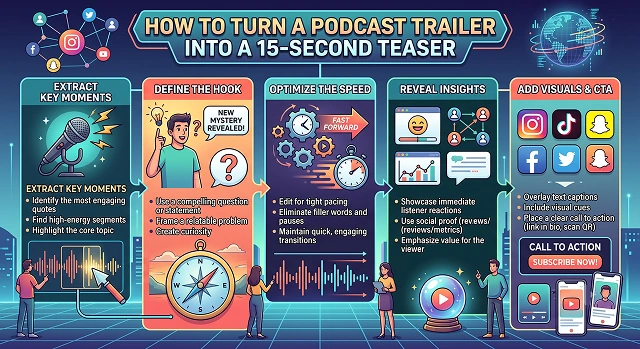
Because social media timelines are constantly in motion at breakneck speed, a long and drawn-out podcast trailer will definitely be ignored. The attention spans of the audience are short-lived, which means that the only way to make them from just scrollers to dedicated subscribers is through the use of the 15-second video trailer.
The conversion of a 2-minute podcast trailer into a 15-second video trailer when posting on platforms such as Tiktok, Instagram Reels, and YouTube Shorts requires a lot of editing.
Step 1: Stop Looking for a Summary, Look for a Single Moment
The instinct with a trailer is to compress the whole thing, a bit of the intro, a bit of the theme, a bit of the guest bio. Resist that completely. The teaser being only fifteen seconds long will only be enough to contain one idea, which is why your task is to find the one most shocking, funniest, or specific thing that happens in the entire trailer, rather than describing the structure of the trailer.
Just listen to it again and jot down any point where you had an emotional reaction. That reaction is the actual signal. If nothing in the trailer produces that reaction, the teaser problem is really a trailer-content problem, and it's worth revisiting the source material rather than the edit.
Step 2: Edit Ruthlessly, Including the Parts You Like
Now that you’ve located the “moment,” edit out everything that comes before and everything that comes after, which aren’t absolutely needed to make the moment work. This one is emotionally difficult, since you’ll be tempted to leave in the clever lead-in or the dramatic pause. Do it anyway. No way is there room in fifteen seconds for anything that isn’t structurally necessary.
Here’s a useful tip: If you can tell the whole story in twelve seconds instead of fifteen, go ahead and use the three additional seconds for breathing room at either the beginning or the end. It’s better for the teaser to feel like a tease rather than feeling hurried.
Step 3: Caption Right Away, Don’t Forget Later
It should be noted that most people scanning a teaser are not going to have their sound on, and 15 seconds does not give enough time to turn it on. Therefore, bold and stylish captions, rather than plain subtitles, should be able to carry the message across by themselves. Tools like CapCut or Opus Clip handle this automatically and reasonably well on clear audio, but always double-check the exact wording on your key line, since that's the one sentence you can't afford to have transcribed wrong.
Step 4: Add a Visual Anchor, Even a Simple One
If you don't have video footage of the recording, don't just run a static waveform for 15 seconds and call it done, a still photo of the hosts, a simple animated waveform with your show's branding, or a bold quote card timed to the key line all work better than a blank audio bar. The visual doesn't need to be complex, it just needs to give someone's eyes something to land on while the audio does the actual work.
Step 5: Leave Them with One Clear Action, Not a Logo
There is a precious last second at the end of your teaser video, and too many people spend it displaying an end card with a logo. Instead, make your video work for you by leaving them with one clear action at the end - episode release Thursday, link in bio, search the podcast on whatever platform you listen to podcasts. It is OK to be vague in a full trailer video, but not a teaser video.
Step 6: Export to Your Platform
The videos that have been recorded vertically for the platforms like Instagram and TikTok will not be effective when exported horizontally on platforms like YouTube and vice versa. When uploading the same teaser video to several platforms, be sure to adjust your exporting process according to the platform you are using; most repurposing tools will take care of it automatically, but just double-check that none of your key elements are being cropped.
Trailer vs Teaser
What Each Format Is Actually For
| Format | Job It's Actually Doing |
|---|---|
| Full Trailer (60-90s) | Explains the show's premise and hosts to someone who's already somewhat interested. Lives on your podcast's own page or feed. |
| 15-Second Teaser | Interrupts a stranger's scroll with one specific, surprising moment. Lives on social feeds where nobody already knows your show exists. |
| 30-60s Episode Clip | Sits between the two, enough context to explain the topic, still short enough for social, used once someone's already following your account. |
Request A Custom AI Video
Tell us what you're trying to create and we'll point you to the right tool — or help you set it up.
The 15-Second Teaser Anatomy: Every Second Counts
When compressing your trailer into 15 seconds, you cannot afford traditional intro greetings. You need to transition directly into the action.
- 0:00 – 0:03 (The Visual Hook): The most shocking, dramatic, or high-energy statement from the episode.
- 0:03 – 0:11 (The Core Conflict): A quick montage or sequence framing the central theme of the conversation.
- 0:11 – 0:15 (The Destination CTA): A crisp vocal or graphic outro directing the audience where to listen.
Step-by-Step Workflow to Condense Your Content
Follow this production sequence to cleanly strip down your full-length trailer asset:
1. Isolate the Peak Audio Spike
- Open your full trailer sequence in your editing timeline. Scan the waveform specifically looking for a high-intensity 8-second audio chunk. This clip must deliver an explicit value realization, a massive punchline, or a dramatic cliffhanger. Cut everything else out.
2. Reframe for Vertical Canvas
- In the timeline, change the aspect ratio from 16:9 widescreen to 9:16 or 1080 x 1920px mobile vertical. Create keyframes for the panning such that the speakers’ faces remain in the center of the screen at all times during the clip.
3. Inject High-Impact Kinetic Captions
- More than 80% of people watching social media videos from their mobile phones do it with muted audio. Create automatic subtitles and use a bold font, as well as split text into blocks of 1 - 3 words per frame. Quick popping words mirror fast speech rate and lock human eyes in the middle of the video canvas.
4. Construct the Micro-CTA Card
- Spend the last 3 seconds of the video on action design. Put the cover art of your podcast and include an image overlay that will say "Listen to Episode 12 on Spotify & Apple Podcasts". Do not use generic "link in bio".
Podcast Teaser Automation
Condense long audio trails into high-retention 15-second mobile hooks on autopilot.
The top platforms for audio-to-short conversion include OpusClip (the absolute benchmark for scanning long clips to find the highest-scoring hook moments), Headliner (exceptional for building dynamic waveform graphics and audiograms), and Descript (perfect for text-based audio slicing and quick kinetic subtitle application). If you need an instant multi-output framework, Munch and Vidyo.ai are the standard industry pipelines.
Rather than randomly slicing your timeline, engines like OpusClip utilize a trained Virality Predictor Model. The algorithm scans your transcription text to locate sudden emotional spikes, shocking statements, major value insights, or intense dialogue shifts. It evaluates these metrics against current social media trends to isolate a self-contained 15-second block that leaves audiences eager to hear the full episode.
Over 80% of mobile users scroll through short-form feeds with sound turned completely off. To lock in their attention, open your caption dashboard profile and choose Kinetic Single-Word Highlights. Set the typography fonts to a bold, heavy style, select high-contrast accent tones (such as a vibrant ochre gold highlight), and instruct the engine to reveal only 1 or 2 words at a time to maintain visual pacing.
Standard podcast studio setups film in horizontal widescreen format (16:9), but social reels demand vertical layout scaling (9:16). AI Auto-Framing uses neural face tracking to continuously monitor who is speaking. The camera window follows the speaker across the frame, keeping them perfectly centered on mobile screens. If the teaser features an active back-and-forth dialogue exchange, the engine can instantly split the screen layout vertically to show both speakers simultaneously.
Yes, most clipping platforms feature automated descriptions. To maximize click-through rates, instruct the script generator to match the mood of the clip. A proven copywriting template is: "Write a 2-sentence description for a social reel hook. Summarize the core value pitch, end with a strong question to drive engagement in the comments, and add a clean reminder to tap the bio link for the full episode."
If your ambient sound tracks compete with the speakers, the teaser becomes difficult to follow. Turn on Smart Audio Ducking within your editing timeline dashboard. This feature automatically reduces your background music mix down to roughly -22dB the exact millisecond voice activity is detected, instantly raising the track volume back up during the final seconds to leave a striking closing signature loop.
Deploy a strict 3-Step Batch Extraction Pipeline: First, copy your main podcast episode video link directly into an automation engine like OpusClip. Second, let the neural framework parse the layout and select your high-yield 15-second teaser candidates complete with auto-framing and subtitles. Finally, review the text script for minor brand name spellings, select an engaging title, and export your vertical short file straight to your scheduling queue.
Ready to Cut Your Teaser?
Turn one great moment into a clip worth stopping the scroll for.