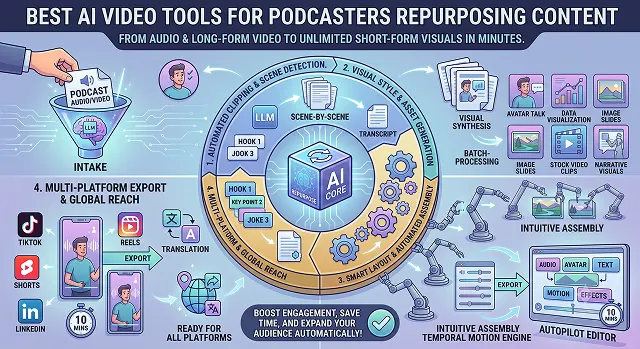
A podcaster I've been chatting with in a creator Discord posted something a while back that stuck with me: she'd recorded 40 episodes over a year and had precisely three social clips to show for it. Not because the content wasn't good — I'd listened to a few, it was genuinely funny — but because scrubbing through an hour-long recording to find the one 45-second moment worth clipping is tedious enough that most people just... don't.
That's the actual problem AI repurposing tools are solving, and it's a bigger deal than it sounds. One episode can realistically become a full YouTube upload, eight or ten short clips, an audiogram, a set of quote graphics, and a blog post — but only if someone (or something) does the grunt work of finding the good parts. I spent a stretch of time running the same 70-minute two-host episode through five different tools to see which ones actually pulled their weight.
The Short Version
If you just want short-form clips with minimal fuss, Opus Clip is the one most people land on. If you're already editing your full episode and want clip generation baked into that same workflow, Descript. Recording remotely with guests and want repurposing built into the same platform? Riverside. Running an audio-only show and need something visual for social? Headliner. And if clips aren't really the goal but you want show notes, blog posts, and social copy pulled out of your audio automatically, Castmagic does that job better than anything else here.
1. Opus Clip — Best for Finding the Viral Moment
This is the one that gets recommended the most in podcasting circles, and after using it, I get why. Upload the episode and it scans the whole thing for the moments most likely to actually land — a strong opinion, a surprising stat, a joke that lands — then hands you a stack of vertical clips with captions already burned in.
It's not flawless. On our test episode it flagged a slower, more analytical segment as a top pick, and honestly, I disagreed with its choice more than once. Treat its picks as a shortlist to review, not a final answer, and it saves you a genuine amount of scrubbing time.
Cost-wise — there's a free tier to test the workflow with limited monthly minutes, and paid plans scale up based on how much footage you process each month.
2. Descript — Best If You Edit The Full Episode Too
Descript works differently from a pure clip tool — it treats your recording like a text document. Delete a sentence in the transcript, and the matching bit of audio or video gets cut too. Once you've cleaned up the full episode this way, pulling out clips is a much smaller extra step since you've already sat with the whole transcript.
The clip-finding side is a bit more manual than Opus Clip's automatic scoring — you're selecting moments yourself rather than getting a ranked shortlist. For podcasters who edit their own episodes anyway, that's a fair trade. For someone who just wants clips without touching the full edit, it's an extra step you might not need.
Cost-wise — it has a usable free tier for shorter projects, with paid plans priced around transcription hours and export limits.
3. Riverside — Best for Recording and Repurposing in One Place
If you record remote interviews, Riverside's biggest selling point isn't really the clipping feature at all — it's that it records separate, high-quality local tracks for each guest so a shaky internet connection doesn't ruin your audio. The repurposing tools sit right on top of that same recording, so there's no exporting and re-uploading into a separate app.
I'll be honest, the clip suggestions were a little hit-or-miss on our conversational, back-and-forth episode — it seemed to do better with clear question-and-answer formats than free-flowing chat. Still convenient enough that I'd rather fix a clip manually than juggle two separate tools.
Cost-wise — there's a free plan covering shorter recordings, and paid tiers unlock longer sessions plus the repurposing features.
Side-by-Side At a Glance
Tool · Best For · Output
| Tool | Best For / Output |
|---|---|
| Opus Clip | Automatic viral-moment detection with ranked, captioned vertical clips. Best for podcasters who want clips fast without reviewing the full transcript themselves. |
| Descript | Full episode editing via transcript, with clip export built in. Best for shows that edit their own episodes and want clipping in the same tool. |
| Riverside | High-quality remote recording plus AI clip suggestions on the same platform. Best for interview-style shows recording with remote guests. |
| Headliner | Turns audio-only files into waveform or captioned video. Best for podcasts that have never recorded on camera. |
| Castmagic | Show notes, blog posts, quote graphics, and social captions from audio. Best for the written and graphic side of repurposing, paired with a separate clip tool. |
Request A Custom AI Video
Tell us what you're trying to create and we'll point you to the right tool — or help you set it up.
4. Headliner — Best for Audio-Only Shows
Not every podcast is recorded on camera, and that's exactly the gap Headliner fills. It takes your audio file and turns it into a video by pairing it with a waveform animation, a static image, or captions — which sounds simple, but it's genuinely the fastest route from "I only have an audio file" to "I have something postable on Instagram."
It's not trying to compete with the full clip-detection AI of the other tools here, and it doesn't need to. If your show has never had a camera pointed at it, this solves a very specific, very real problem that the rest of these tools kind of assume you don't have.
Cost-wise — there's a free tier for getting started, with paid plans opening up more templates and longer export lengths.
5. Castmagic — Best for Everything Except Video Clips
This one's a bit of an odd fit on a "video tools" list, and I nearly left it off — but it kept earning its spot every time I used it. Instead of clips, Castmagic pulls show notes, blog posts, quote graphics, and social captions straight out of your episode audio. Think of it less as a video editor and more as the tool that handles everything a video clip alone can't do.
Pair it with whichever clip tool you like, and you've basically got a full repurposing pipeline: video clips from one tool, written content and quote assets from this one. Using it alone, without something to actually generate the video side, would leave a gap most podcasters still need filled.
Cost-wise — plans are typically priced around how many episodes or hours you process per month, aimed more at shows publishing consistently than the occasional one-off episode.
How I'd Actually Build a Repurposing Stack
Nobody needs all five of these. Most podcasters I've talked to end up landing on two tools, tops, and honestly that's plenty. Here's how I'd think about picking:
- If you record on camera and just want short clips out the door fast, start with Opus Clip alone. Add a second tool only if you find yourself constantly overriding its picks.
- If you're already editing full episodes, don't add a separate clip app — Descript already has you covered, and switching tools mid-workflow just adds friction.
- Audio-only show with zero video footage? Headliner is basically non-negotiable — nothing else on this list solves that specific gap as directly.
- Want the written side of repurposing too — show notes, blog content, quote cards? Pair whichever clip tool you picked with Castmagic, since none of the video-first tools really do this well.
The tool matters less than the habit. A mediocre clip posted every week beats a perfect clip posted once a quarter.
That's really the biggest thing I took away from testing all this. The AI saves you the scrubbing-through-an-hour-of-audio part. It doesn't save you from needing to actually sit down, review what it gives you, and post it consistently. The podcasters seeing real growth from clips aren't the ones with the fanciest tool — they're the ones who didn't stop after week two.
Podcast Repurposing Toolkit
Turn long-form podcast recordings into an army of viral short-form clips instantly.
It uses Semantic Hook Detection. The AI doesn't just listen to words; it analyzes sentence structure, vocal tone shifts, and emotional peaks to find complete thoughts. It hooks onto core arguments, funny punchlines, or sudden topic shifts, giving each extracted clip a data-backed "virality score" based on current social media algorithm trends.
The current industry gold standards are Opus Clip, Munch, and Wizard-Shot. You simply drop in a YouTube link or upload a raw audio/video file, and these platforms automatically cut the episode into 10 to 15 vertical short clips, complete with framing adjustments and animated subtitles.
They use intelligent Active Speaker Tracking. Instead of just cropping the center of a wide shot, the AI detects faces and tracks who is talking in real-time. If you have a two-person setup, it can automatically generate a stacked vertical layout with the host on top and the guest on the bottom, cutting between them seamlessly.
Absolutely. You don't have to settle for basic text. Most Simple tools feature an Asset Style Guide Manager where you can pick popular kinetic layouts (like the neon-highlighted aesthetic), select custom brand colors, change fonts, and add automatic emojis to maximize silent scroll retention.
You can still use these workflows via AI Audiogram Generation. Tools like Headliner or Descript take raw MP3 files, extract the best audio clips, and turn them into shareable video formats by adding dynamic sound waveforms, progress tracking bars, and auto-transcribed text over a clean background image.
Yes, it provides a full Metadata Content Package. Along with each generated video snippet, the AI provides an optimized title, an engaging caption explaining the context, search-friendly hashtags, and a brief description tailored to platforms like TikTok, YouTube Shorts, and Instagram Reels.
Run the link through an automated clip engine right after finishing an episode recording. Let the system slice out the raw drafts, pick the top 5 clips with the highest engagement potential, spend just 5 minutes verifying that the face tracking boundaries are dead-on, and push them to your social media scheduler. This workflow keeps your channels fed with daily content all week long from a single episode.
Ready to Repurpose Your Next Episode?
Turn one recording into a week's worth of shareable content.