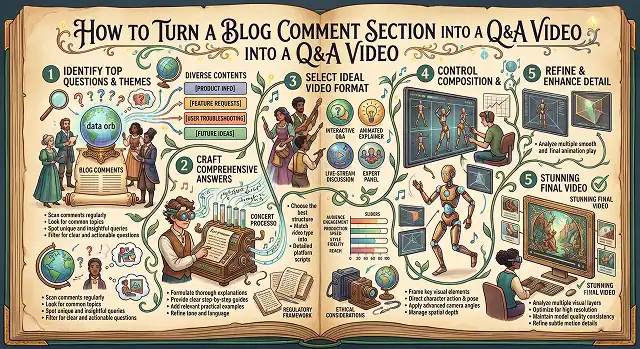
If you've ever run a blog for more than a few months, you already have an underrated content goldmine sitting right there in your comment section: real questions, asked by real readers, in their own words. Most people just... reply to them in text and move on. Which is fine, but it's also leaving a pretty easy video idea on the table.
A Q&A video built from actual reader comments tends to outperform a generic "top questions about X" video, mainly because the questions are already proven — real people asked them, which means other readers probably have the same question and haven't bothered typing it out.
Here's how to actually turn that comment thread into a finished video without needing to film yourself talking for twenty minutes.
Why Blog Comments Make the Absolute Best Video Content
Most content creators struggle to find fresh video ideas. By leveraging your comment section, you gain a massive competitive edge:
- SValidated Search Intent: If a reader took the time to type a question, hundreds of others are searching Google for that exact same answer.
- Algorithm-Friendly Community Signals: When you feature a real user's comment on screen, it triggers a powerful psychological reward. Other viewers will start commenting heavily on your new videos just to get featured in the next episode.
- Hyper-Authentic Scripting: You don't have to guess what your audience cares about. The script is literally written by your market.
Step 1: Read through the Comments, Rather Than Simply Moderating Them
Blog comments usually get scanned for spam and moderated automatically without really being read. Take 20 minutes and read each of the legitimate comments to your posts and look out for any questions or people saying something like "but what about..." Sometimes a comment may start off with something like a compliment and you will find the question in the next sentence.
Step 2: Group Similar Questions Into One
You'll almost always find that ten different comments are really asking three underlying questions, just phrased with different words or specific examples. Combine them into a single, clearly-worded question rather than answering ten near-duplicates separately — this also makes the eventual video feel focused instead of repetitive.
Rank the grouped questions by how often some version of them showed up. The most-repeated question earns the most screen time; a question only one person asked might not need its own segment at all.
Step 3: Write Tight Answers Before Touching Any Video Tool
Each answer should be provided as 2 to 4 sentences, just like how you would speak to someone standing before you and not as an academic paragraph in the original article. It is important to note that narration style videos sound different from written form, and for your script to be easily audible when narrated, it must look a bit too short or simple in writing. This is normal.
Step 4: Choosing Whether to Make One Video or Multiple Short Videos
If you found three to five genuinely good questions, a single 60-90 second video answering all of them, clearly labeled question by question, usually works best for embedding back into the original blog post. If you found closer to eight or ten, consider cutting them into separate 15-20 second clips instead — each one becomes its own social post, and together they stretch into a week or two of content from a single research session.
Number of Questions to Format
How Many You Found · Best Format
| Questions Found | Recommended Format |
|---|---|
| 1-2 Strong Questions | One short, focused video, roughly 30-45 seconds. Embed directly in the blog post itself. |
| 3-5 Questions | One combined Q&A video, 60-90 seconds, each question clearly labeled on screen before its answer. |
| 6+ Questions | Cut into separate 15-20 second clips, one per question, spread across a week or two of social posts. |
Request A Custom AI Video
Tell us what you're trying to create and we'll point you to the right tool — or help you set it up.
Step 5: Generate the Video
With your tight script ready, a text-to-video tool like Pictory can turn it into a finished video quickly, matching visuals to each answer. If you'd rather have a consistent presenter reading through each question and answer, an AI avatar tool works well here too, and gives the Q&A format a bit more of a "someone is genuinely answering you" feel than slides and narration alone.
On screen, display the actual question as text before the answer plays, styled clearly, almost like a mini title card. It must be immediately clear what question this answers without the viewer having to listen right from the beginning.
Step 6: Publish It Back Where the Questions Came From
The step that gets most overlooked: Publish the video back where the questions came from, preferably somewhere close to the actual comments themselves. This will make it instantly clear for anyone stumbling upon that post with that same exact question in mind and shows new commenters that their questions are answered and responded to, making people more likely to actually engage with the content.
A Few Things Worth Getting Right
- Don't quote a commenter by name without asking first. Paraphrase the question in your own words rather than reading their comment verbatim with their username attached, unless you've actually gotten their okay to be featured.
- Answer the actual question being asked, not a more convenient question. It is easy to make a minor change in wording to a difficult question so that you have an easier question to answer. But don't do this. If the answer is complicated, admit it.
- Update the video if the underlying answer changes. If your product, policy, or advice shifts later, a Q&A video answering an outdated version of the question becomes actively misleading rather than just stale.
- Do this regularly, not once. Comment sections keep generating new confusion as new readers arrive. Revisiting this process every few months on your most-commented posts keeps finding fresh material.
Your audience is already telling you what to make next. A comment section full of the same repeated question isn't noise, it's a content calendar you didn't have to brainstorm.
Comment-to-Video Engine
Extract community questions, automate script layout, and build high-retention Q&A videos instantly.
The top platforms for community-driven content generation include InVideo AI (exceptional for turning raw question sheets into fully voiced, clip-matched video timelines) and HeyGen (the gold standard for hosting conversational, avatar-led Q&A segments that feel personal). For building stylized social media shorts featuring interactive text overlays of the actual user questions, CapCut AI and Canva Video provide the fastest automation templates.
Raw comment feeds are frequently full of slang, typos, and unrelated talk that confuse video engines. Pass your text log or spreadsheet through a large language model first using an Audience Q&A Cleaning script. Instruct the model: "Isolate the top 5 distinct viewer questions from this data log. Correct the typos while keeping the conversational human intent, strip away unrelated sentences, and format them as a structured Q&A script sheet."
To make the video feel completely authentic, avoid typing the question out as generic plain subtitles. Instead, take a high-res digital snapshot or render a styled UI Comment Card graphic showing the user's actual username and profile thumbnail icon. Crop this card element into a clean, floating banner box layer positioned over the upper-third quadrant of your vertical 9:16 layout, mirroring native social media features.
Never open your video with slow introductory remarks like "Welcome back to my channel." Instead, utilize a 3-Second Visual & Vocal Hook. Immediately address the community member's pain point by reading the query aloud instantly: "Our reader Sarah asked an incredible question about X, and the answer completely breaks standard industry assumptions. Let’s look at the metrics."
Yes. Avoid rigid, mechanical voice configurations that kill social media retention. Route your finalized explanation scripts through conversational voice libraries (like ElevenLabs or InVideo custom models). Tweak your stability settings to roughly 50% to allow natural human pitch shifts, vocal expressions, and organic breath breaks, ensuring your response sounds friendly and approachable.
If your ambient backdrops fight for clarity with your response audio, viewers click away instantly. Toggle on AI Audio Ducking inside your editing workspace. This automatically turns down background track parameters to roughly -20dB the exact split-second voice narration is active, maintaining highly clear speech lines while bringing back standard levels during video transitions.
Stick strictly to this secure 3-Step Community Automation routine: First, extract your targeted audience question entries and run them through a text builder to clean up script layers. Second, drop the script into an engine like InVideo AI or CapCut to assemble video clips, kinetic captions, and human-like voiceovers on auto-pilot. Finally, drop your custom comment graphic card onto the timeline before rendering out your 1080p mobile-ready shorts file.
Ready to Answer Your Readers?
Turn the questions already sitting in your comments into a video worth watching.