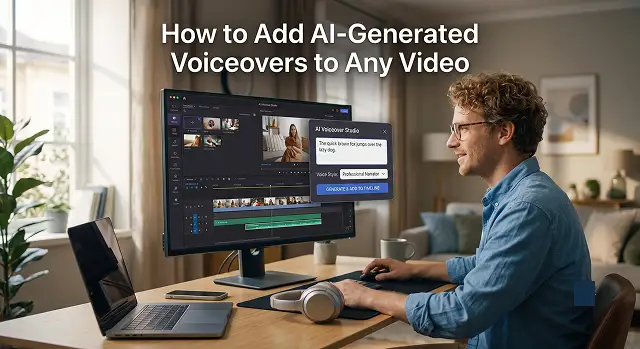
Adding an AI voiceover to a video is incredibly easy nowadays—you no longer need a professional recording studio, an expensive microphone, or multiple takes to fix a stutter.
Depending on your comfort level, you can choose between two primary methods: The All-in-One Route (using an online tool that handles both video and voice) or The Pro-Mix Route (generating the perfect audio first, then dropping it into your favorite editor).
Method 1: The One Size Fits All Approach (Easiest Way)
One of these tools can help, if they all in one and modern editors such as Capcut , Microsoft clipchamp , VEED . I can just type text on my videos and edit from there to make them sound to voice in order to match my videos.
Upload your video
- Open one of the websites or apps in your browser and start a new project, then just drag your video file to the timeline.
Open Text-to-Speech tool
- Find the menu button called "Record & Create", "Audio" or "Text". Click on Text to Speech or AI Voiceover.
Enter your text
- Copy and paste or simply enter your script.Tip: Use appropriate punctuation marks to let the algorithm know where it should take a pause.
Select voice character
- Choose a voice. This can be based on various criteria like the gender of the voice, the accent like American, British, Australian, and the tone like energetic or professional.
Generate and Align
- Tap Generate or Save to Media. It will add an audio track right below your video. Just move it left or right and align it with your video scene.
Method 2: Pro-Mix (Advanced Quality)
To have the best possible realistic emotive voices (specialized web apps for AI voice like ElevenLabs, Lovo, or Smallest.ai), you will need to generate the audio first, and then process the same.
Generate the voice track
- Log into premium AI voice generator service, insert your text, select the best realistic sounding female (or male) AI model and click “Generate” then “download asmp3 or wav” once you find the output satisfactory.
Bring everything into your editor
- Open whatever video editor you like using (even simple ones like iMovie, Premiere Pro, or a phone app like InShot). Import your original video and your newly downloaded AI audio file.
Mute the original noise
- Select your video track and reduce its volume to 0% or remove the original audio track so that there isn’t any conflicting sound from the background or your voice during the narration process.
Sync and export
- Place the AI audio file into the timeline and ensure that the text matches what is happening visually. Remove any dead spaces if any exist and place some background music if required. Click on Export to get your finished video.
Method 3: Insider Tips for a "Human" Result
- Punctuation is your steering wheel: AI reads what it sees If you want to put an amazing pause, add ellipsis (...) to your speech, or if you would like to add a rise, you simply need to put a question mark .
- Fixing mispronounced words: If the AI struggles with a brand name or a unique word, spell it phonetically in the text box. For example, if it says "iPhone" weirdly, try typing "Eye-phone".
- Duck your background music: If you add a music track under your AI voiceover, turn the music volume down to roughly 10% to 15%. This keeps the music sounding like a background element while keeping the AI voice crisp and easy to understand.
Choosing Your Engine
Project-Specific Objectives · Engine Allocation Index
| Tool Category | Top Platforms | Best Used For | Key Advantage |
|---|---|---|---|
| All-in-One Editors | CapCut, Microsoft Clipchamp, Google Vids | YouTube Shorts, TikToks, quick social media edits | Speed. You do not need to export or import separate audio and video files. |
| Premium Narrative AI | ElevenLabs, Play.ht, Lovo AI | Documentaries, long-form storytelling, audiobooks | Flawless realism with micro-inflections, emotional tone control, and voice steering. |
| Interactive & Tech | Murf AI, Camtasia Audiate | E-learning, software tutorials, presentations | Great for syncing audio by-slide or text block with built-in audio editing. |
Request A Custom AI Video
Tell us what you're trying to create and we'll point you to the right tool — or help you set it up.
1. Pre-Production (The Blueprint)
The Biggest Mistake most Creators make is the attempt to create the voiceover “live”. AI just reads back whatever you give it and you NEED an iron-clad script first.
- Pacing Rules: Typically for most conversations 130 to 150 words a minute is what they would consider normal. 130 words for a minute a 60 second video should be less than 150 words. If not people will think your speaking to quickly.
- Timestamp Mapping: View your silent video material or your draft. Write out specific timestamps where your visual changes occur (0:04 - show your product, 0:12 - change to chart). Fit each chunk of your script within those exact periods.
- The Breath Rule: Place spaces or ellipses (...) in between different segments in your script text. AI models use punctuation marks as prompts for taking in natural breaths, making it sound like a human is speaking right away.
2. Workflow Steps
Option A: The Timeline Workflow (CapCut / Clipchamp)
If you are prioritizing speed and efficiency:
- Drag your raw video footage into the editor track.
- Select the Text tool and type your desired caption on the screen.
- Click on that text block, locate the Text to Speech feature, and pick a voice profile.
- The timeline will generate a matching speech bubble beneath your text.
- Uncheck "Apply to all" if you want to use different character voices for different speakers in your clip.
Option B: The Standalone Split-Workflow (ElevenLabs + Premiere / iMovie)
For high-end cinematic production value:
- Insert your script into your own independent voice application. Choose the right voice model to fit the tone of the voiceover (e.g., “Deep Professional Narration”).
- Export the audio file in the WAV format (the format preferred for editing over the MP3 format).
- Now import both the video and the WAV file into your video editing application.
- Mute or delete the original camera microphone track to completely clear out background room hiss.
- Slice up the single long AI audio track into small sections, moving individual sentences left or right so they precisely match the on-screen action.
3 Pro Post-Production Audio Polish
Once you have your voice you need to "glue" video so it doesn't sound overly sterile or robotic.
- Phonetic Spelling Tweaks: If there are words it reads wrong such as foreign names or acronyms use these character combinations within the script block. Such as Es-Queue-El for the above word Sql.
- Background Room Tone: Completely silent backgrounds sound jarring. Drop an ambient track—like very low-volume "office background hum" or "soft outdoor wind"—at around -30dB under your voice track. It masks the digital silence.
- Audio Ducking: Play back background music under your AI narration, keeping the music around a volume between –18db and –22db (or about 10%) when your AI is talking. Raise it just to 40% in long pauses in between speakers when only the music is active.
AI Voiceover Integration
Learn how to layer professional, human-sounding synthetic narration onto any timeline.
You have two simple options. You can type your script into a dedicated voice platform like ElevenLabs, download the high-quality MP3 file, and drop it straight onto your editing software's audio track. Alternatively, you can use all-in-one tools like CapCut or Premiere Pro, paste your text into their built-in text-to-speech engine, and the software will align the narration to your timeline automatically.
The golden rule of video layout is to generate your audio first. It is incredibly difficult to force an AI voice to read a sentence at the exact millisecond pace of pre-cut video scenes. Generate your full narrative track first, place it on your timeline, and then trim or stretch your visual assets to match the natural breaks, pauses, and emphasis points of the voiceover.
AI models interpret text exactly as written, so you must write phonetically when words sound stiff. If the AI mispronounces a brand name, spell it out how it sounds (e.g., write "Hedra" as "Head-ruh"). To add natural breathing room, use commas (,) for brief breaks, dashes (—) for structural pauses, and periods (.) to force a distinct drop in vocal pitch.
Yes, this is a massive lifesaver for fixing bad audio records. First, drop your clip into an AI tool like Descript or Riverside to extract a clean text transcript. Next, clean up any typos or filler words in that document. Finally, toggle that script onto a premium AI narrator profile or a clone of your own voice to overlay a pristine audio track over the original media.
Use a feature called Audio Ducking. Most modern editing tools feature an automated button for this layer. The software automatically scans your timeline and instantly drops the volume of your background music track by 15-20 decibels whenever the AI voice begins speaking. When the narrator pauses, the music volume subtly rises back up to keep the momentum going.
Yes, always pair the voice style to the goal of the clip. For high-impact promotional ads or product hooks, pick a voice model tagged with high energy, expressive ranges, or deep presence. For educational tutorials, long courses, or help guides, select a calm, steady conversational voice profile to ensure the audience can follow the training steps without fatigue.
Keep a clear 3-Step Sprint strategy: Write your core text inside your choice editor dashboard, lock down stability parameters to roughly 40-50% to naturally insert slight human voice imperfections, generate the generation track block immediately, and export it as an uncompressed WAV or premium MP3 file to keep your audio crisp.
Ready to try AI Videos?
Transform your ideas into cinematic video in seconds.