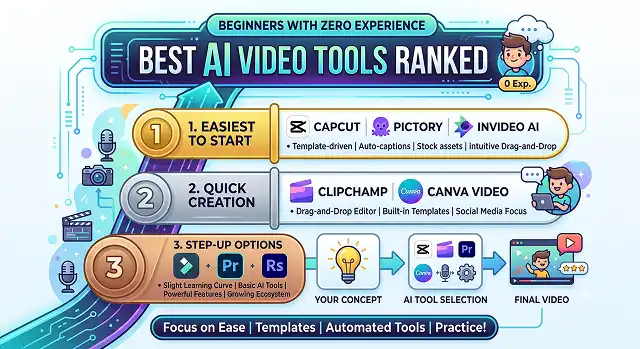
Making a professional video might be perceived as something absolutely daunting when you’ve never even laid eyes on a timeline editor. Traditionally, one had to acquire keyframing knowledge, waste many hours cutting an audio track, color-grade footage, and adjust the export bitrate.
By 2026, artificial intelligence technology has done away with all those barriers to entry. You don’t have to have powerful hardware anymore, a costly camera, or know how to use a timeline editor. All an up-to-date AI can do is transform a piece of text, a blog post link, or just a single picture into a captioned video with a soundtrack and voiceover in less than two minutes.
But when there are hundreds of applications that are "beginner friendly" out there, which ones are living up to their name?
This list ranks some of the top platforms in terms of usability, efficiency, and the amount of work done by the AI. This is the ultimate guide to beginner-friendly AI video apps.
The Short Version
If you want the single easiest possible starting point with zero learning curve, start with Canva. Close behind for social content specifically is CapCut. If you want a tool that basically writes and builds the video for you from one sentence, InVideo AI is remarkably beginner-proof. If you're starting from something you already wrote, Pictory handles that well but wants a bit more input from you. And Synthesia, while excellent, is genuinely the one she got stuck on — more on why below.
1. Canva — Easiest Overall
This was the only tool she navigated without asking me anything at all, and I think it's because it doesn't really look or feel like "video editing software" — it looks like the same kind of drag-and-drop interface a lot of people already know from making a poster or an Instagram post. Templates are front and center, and picking one basically hands you a finished structure to fill in.
The AI features (Magic Write for scripts, text-to-video generation) are there if you want them, but she barely needed them — she just picked a template built for the occasion and swapped in photos and text. That "you don't have to touch the AI part at all if you don't want to" quality is exactly what makes it the least intimidating starting point.
Cost-wise — the free plan covers everything a first-time user actually needs, with paid tiers mainly adding premium templates and brand tools.
2. CapCut — Easiest for Social-Style Content
She'd actually opened CapCut once before out of curiosity and immediately closed it, intimidated by the sheer number of icons on screen. With an actual project to complete, though, the auto-captions and template library carried most of the weight — she picked a trending template, dropped her clips and photos in, and it assembled itself.
The one moment of genuine confusion: the difference between "templates" and starting a blank project wasn't obvious at first glance, and she almost started from a blank timeline before I nudged her toward templates instead. Once past that one decision, she didn't get stuck again.
Cost-wise — completely free for the core editing and template tools, no watermark, which makes it an easy zero-risk starting point.
3. InVideo AI — Easiest If You Just Want to Type and Go
This was the closest thing to genuinely "beginner-proof" in terms of not needing any editing knowledge at all — she typed a sentence describing what she wanted, and it built an entire draft video for her: footage, voiceover, music, captions, done.
Where she hit a small snag: once the draft existed, she wasn't sure how to change just one scene without regenerating the whole thing, and ended up starting over rather than finding the edit option. That's a real beginner gap — the generation step is foolproof, but the "now tweak it" step assumes a little more familiarity with the interface than the first step does.
Cost-wise — there's a free tier with limited monthly credits, enough to test the workflow before deciding whether to upgrade.
Beginner Ranking At a Glance
Tool · Where They Got Stuck (If At All)
| Tool | Ease of Use Notes |
|---|---|
| 1. Canva | Completed without asking a single question. Familiar drag-and-drop interface, template-first workflow. |
| 2. CapCut | One moment of confusion between templates and blank projects. Otherwise smooth once templates were found. |
| 3. InVideo AI | Generation step was foolproof. Got stuck trying to edit one scene without regenerating everything. |
| 4. Pictory | Handled a written script well. Needed help with the blank-page step before the tool could even start. |
| 5. Synthesia | Excellent output quality. Got lost choosing between avatar and script options with no prior context. |
Request A Custom AI Video
Tell us what you're trying to create and we'll point you to the right tool — or help you set it up.
4. Pictory — Good, But Wants a Bit More From You First
Pictory did well once she had something written to feed it — in this case, a short paragraph I helped her draft about the book club's history. Handed a real script, it built a video that matched surprisingly well. This extra step before using Pictory is what makes this application difficult for someone who is a complete beginner because it does not narrate the story; rather, it makes a video from your story.
It may be easy if you know exactly what you want to communicate but require help in creating the visuals for it. But if you are unable to even think about how you should start your story, then this is an extra step that will make it more difficult than something which creates everything out of a sentence.
Cost-wise — there's a limited free trial, with paid plans unlocking longer videos and more monthly minutes.
5. Synthesia — Powerful, But Not the Easiest First Stop
This is genuinely a great tool, and it's shown up positively elsewhere on this blog — but it's built with a slightly different beginner in mind, someone comfortable writing a script and thinking about "presenter, avatar, scene" as separate concepts. My mom got a bit lost choosing between dozens of avatar options and wasn't sure how the script box related to what the avatar would actually do on screen.
That's not really a flaw in the tool so much as a sign it's aimed at a slightly more deliberate, presentation-style use case — corporate training, structured explainers — rather than "I have a vague idea and want a video fast." For that specific job, it's excellent. As a genuine first tool for someone who's never made a video before, it asks a few too many decisions upfront.
Cost-wise — there's a limited free plan to explore the interface, with paid tiers scaling for actual regular use.
What Actually Trips Up First-Timers
Watching someone genuinely new to this go through five tools back to back, a few patterns showed up that had nothing to do with any single tool's quality.
- Too many options at the very first screen is the biggest killer of momentum. The tools that led with one clear starting action (pick a template, type a sentence) got finished. The ones that opened on a blank canvas with a dozen buttons caused hesitation, even when the tool itself was capable.
- "Regenerate everything" vs "edit one small piece" is a real gap in a lot of AI-first tools. Beginners assume small changes should be small actions, and get discouraged when the only visible option is starting over.
- Jargon-free labels matter more than feature depth. A button labeled "Add Voice" got used immediately. A button labeled "Text-to-Speech Settings" got skipped, even though it did roughly the same thing.
- Having a finished example to look at first helped more than any tutorial. Seeing what "done" looks like before starting gave her a target, which made the blank-page problem far less intimidating.
The best beginner tool isn't the most powerful one — it's the one where the first five minutes don't feel like homework.
Beginner Video Toolkit
Start creating professional videos today with zero editing experience or technical background.
The absolute best entry points are InVideo AI and CapCut AI. These platforms use a conversational approach—you simply type what you want in plain text (like "make a 30-second video about cooking tips"), and the AI handles the scriptwriting, selects matching footage layers, applies transitions, and adds a voiceover completely on autopilot.
Not at all. Beginner-friendly engines operate entirely as cloud-based applications. All the heavy rendering, asset matching, and complex video processing are handled on high-power external data servers. You can easily build, edit, and export your video projects using a standard web browser on a basic laptop or even right through an app on your smartphone.
Prompt-to-video simply means talking to the software like it's a helpful peer. Instead of clicking dozens of editing buttons, you write a short description. To get the best results without experience, use this simple 3-part layout rule: [Target Audience] + [Core Topic] + [Platform Destination]. For example: "Create a fast-paced video for coffee lovers explaining the difference between an espresso and a latte, formatted for a vertical TikTok short."
You can edit your video using a text box via AI Chat Commands. If you don't like a specific background clip or music track, you don't have to manually slice the timeline. You simply type an instruction into the project's edit box—like "change the background track to upbeat electronic music" or "replace the second clip with a shot of a city sunset"—and the AI updates the layout instantly.
Platforms like InVideo have built-in, pre-negotiated connections to massive premium media libraries (like Storyblocks and Shutterstock). When the AI reads your script text, it instantly queries millions of licensed records to find matching high-definition video clips and ambient sound layers. This saves you from hunting down media assets across the web yourself.
Yes, it is entirely safe and highly common. As long as you export your video projects using an active, paid tier subscription from standard platforms, you hold full commercial usage rights. This ensures your video will not trigger copyright flags or content strikes when uploaded to channels like YouTube Shorts, Instagram Reels, or TikTok.
Stick to the 2-Minute Tuning Blueprint: First, let the prompt engine generate your baseline draft with automated voiceover narration. Second, scroll down to the generated text script, remove any robotic sounding words, and swap out the voice profile to a calm, natural-sounding choice. Finally, click the caption layout button to instantly apply auto-highlighted text to ensure high mobile retention.
Ready to Make Your First Video?
No experience needed — start with a template and go from there.