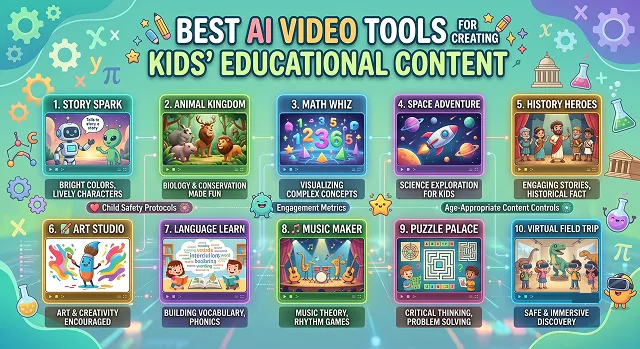
Anyone who has tried explaining science and mathematics concepts to a child knows that writing alone will not work. Children learn visually. In order to hold their short attention spans, your content must contain bright colors, lively characters, and engaging stories.
Previously, creating a top-notch cartoon or an explainer animation would take months of painstaking work with drawings and many thousands of dollars worth of software.
By 2026, AI is now capable of breaking through this limitation completely.
If you are an educator making interactive lessons, an author who wants to make a children's book into a real video, or an entrepreneur working on a profitable YouTube Automation channel for children, picking the right tool is essential. This is our in-depth review of the best possible AI video tools for creating educational videos for children.
The Short Version
Building for a school or classroom setting where safety and a closed ecosystem matter most? Canva for Education is the obvious starting point. Want cartoon-style characters that actually feel made for kids, not just adapted from a corporate template? Animaker. Already have a written lesson plan and want it turned into video fast? Pictory. Prefer a friendly, consistent presenter character teaching the lesson directly to camera? Synthesia. And if you're filming real footage of an actual kid, teacher, or presenter and just need punchy, playful editing on top? CapCut.
1. Canva for Education — Best for Schools and Classrooms
If you're a teacher, this is probably where you should start, full stop. Canva's education tier is a closed environment — no open community templates that could contain something inappropriate, no social feed, nothing a curious kid could accidentally stumble into outside the lesson itself. That alone makes it worth the slightly more basic feature set compared to some other tools here.
The AI script writer handles age-appropriate prompts well — ask for a "60-second script about the water cycle for a 5th grade class" and it generates something genuinely usable, timing notes included. Text-to-speech narration sounds natural enough for classroom use, though don't expect the same polish as a dedicated presenter tool.
Cost-wise — it's free for verified teachers and students, which is a real advantage over paid options if your school qualifies.
2. Animaker — Best for Cartoon-Style Kids Content
In general, Animaker appears to have made its entire template collection intentionally lighthearted, not a reimagined business template design with more color and cartoonish elements attached. The inclusion of characters, whiteboard animation, and infographic templates were all clearly designed with younger viewers in mind and made it substantially easier to create something that seemed like it was made for kids without much tweaking.
What I appreciated about Animaker: Making characters speak through the use of the text-to-speech function is almost instant, which makes it relevant in a situation when you need to pass this program to a real-life kid and let him or her create a video for a class assignment. A 10-year-old would be able to do that with some help.
Cost-wise — there's a free tier with a handful of videos a month, which covers casual or occasional use without needing to upgrade.
3. Pictory — Best for Turning a Lesson Plan Into Video
If you already have a written lesson or article — a science fact sheet, a short story, a homeschool curriculum page — Pictory converts it into a video without you having to design anything from scratch. The output leans more toward an illustrated storybook or narrated documentary feel than a cartoon show, which actually suits certain topics, nature facts and simple science explanations especially, really well.
It's not the tool I'd reach for if I wanted a recurring animated character kids would recognize episode after episode — character consistency isn't really its strength. For a one-off explainer built from existing written content, though, it's efficient and the results look professional enough to actually publish.
Cost-wise — pricing is monthly with caps on video length, sitting in a similar range to most of the other tools here.
Side-by-Side At a Glance
Tool · Best For · Setting
| Tool | Best For / Setting |
|---|---|
| Canva for Education | Closed, safe ecosystem with age-appropriate AI scripting. Best for schools, teachers, and classroom projects where safety comes first. |
| Animaker | Genuinely playful, kid-focused templates and characters. Best for cartoon-style content and school projects kids can help build themselves. |
| Pictory | Converts existing lesson plans or articles into narrated video. Best for homeschoolers and educators repurposing written material. |
| Synthesia | Consistent presenter-led lessons with multilingual voiceover. Best for a recurring "teacher" format aimed at older kids. |
| CapCut | Free, playful editing with captions for real filmed content. Best for demonstrations, activities, or presenters filmed on camera. |
Request A Custom AI Video
Tell us what you're trying to create and we'll point you to the right tool — or help you set it up.
4. Synthesia — Best for a Consistent Presenter-Led Lesson
Synthesia isn't a cartoon generator, and it's worth being upfront about that — the output is a digital presenter, not a traditional animated character. But for a format like "a friendly host explaining letters, numbers, or a concept directly to the viewer," it's one of the more polished options around, especially once you're working with older kids (roughly 5 and up) who can follow a structured, presenter-led lesson.
The multilingual voiceover support is genuinely useful if your audience spans different countries or a bilingual classroom — the same lesson, same presenter, different language, without re-recording from scratch. It suits a recurring "teacher" format better than a one-off story video.
Cost-wise — there's a limited free plan to test it, with paid tiers scaling based on render minutes and avatar options.
5. CapCut — Best for Editing Real, Filmed Kids Content
Not every kids' educational video needs to be fully AI-generated. If you're filming an actual demonstration, a classroom activity, or a presenter on camera, CapCut's auto-captions, stickers, and playful transitions handle the "make it feel fun and kid-appropriate" side of editing without needing professional editing skills.
The auto-caption feature specifically is worth using even beyond the fun factor — captioned educational content is more accessible, and a lot of kids genuinely follow along better with the words visible on screen alongside the narration. What should be pointed out: CapCut’s association with a larger social media platform makes it subject to restriction in some institutions, so one should always check his institution’s policy before integrating it into a workflow.
Cost-wise — all editing capabilities, including captions, are available free of charge, which is quite rare for this type of software.
A Couple Of Things To Remember
The content produced for children is a little more responsible than the usual marketing video, and there are a couple of things to take into consideration before publishing.
- Review the AI's output yourself before a child sees it. Even reputable tools occasionally generate something odd or off-tone. A quick watch-through before publishing catches this every time.
- Check school or platform policy before choosing a tool. Some schools restrict tools connected to social platforms, or have specific rules about AI-generated content for student projects — worth confirming in writing rather than assuming.
- Keep narration paced for the actual age group. A script that reads fine on paper often talks too fast for a six-year-old to actually absorb out loud — slow the pacing down more than feels natural to you as an adult.
- If a real child appears on camera, be thoughtful about what's shown. Avoid visible personal details like a school name, home address, or anything that could identify where they are day to day.
The best kids' educational tool isn't the flashiest one — it's the one that gets out of the way of the actual lesson.
Common Questions
What parents, teachers, and creators usually ask before picking a tool.
It varies by tool and age. Closed, managed environments like Canva for Education are generally the safer choice for younger kids to use hands-on. For open, general-purpose AI tools, an adult should be the one operating the tool and reviewing output before a child ever sees the result.
No. Every tool on this list is template or prompt-driven specifically so teachers, parents, and casual creators can produce something polished without prior editing experience.
Canva for Education is generally the safest bet for restricted school environments, since it's a closed system schools already tend to trust. Always confirm with your school's IT or admin policy before adopting any new tool district-wide.
Yes, several do. Synthesia in particular has strong multilingual voiceover support, which is useful for bilingual classrooms or reaching an international audience with the same lesson.
Shorter is almost always better — aim for 60 to 90 seconds for early learners, with one core idea per video rather than several concepts packed in. Bright visuals and a clear, friendly narrator voice hold attention better than dense text on screen.
Generally yes for adult-run educational channels, though platform policies do change, so it's worth checking current guidelines before publishing. If a real child is the one appearing on camera, keep in mind platforms like YouTube have minimum age requirements for account holders, so uploads should go through a supervising adult's account.
Ready to Build Your First Lesson Video?
Turn a lesson plan into an engaging video kids will actually watch.