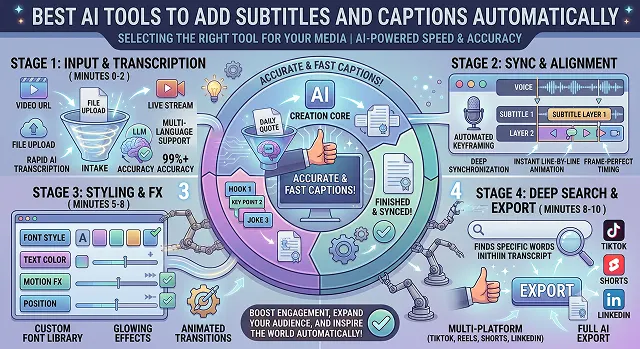
Adding automatic captions to video used to take countless hours of typing and time management. AI makes it a quick and accurate process nowadays. The “best” tool totally depends on what kind of media you are working on.
These are five well-defined groups for the best captioning software powered by AI.
The Short Version
If you're editing on your phone for TikTok or Reels and just want free auto-captions fast, CapCut is the obvious pick. Want a proper browser-based editor with strong styling options and no software install? VEED. Making short-form clips where the captions themselves are basically part of the design — animated, punchy, emoji-heavy? Submagic. Already editing your full video by cutting the transcript? Descript bakes captions into that same workflow. And if accuracy and multilingual support actually matter more than speed — say, for training or legal content — HappyScribe is worth the extra setup time.
1. CapCut — Best Free Option for Social Video
CapCut's auto-captions are baked right into an app most short-form creators already have open anyway, which counts for a lot — no new account, no separate upload. On our test clip, it handled the clearer speaker's lines almost perfectly and stumbled a little more on the one with a slight accent, which is a pattern I noticed across most of these tools, honestly, not just this one.
It won't touch longer or more nuanced content as gracefully. Feed it a 45-minute panel discussion with five speakers, and you'll spend more time correcting than you saved. For a 30-second social clip, though, it's genuinely hard to beat for the price, which is free.
Cost-wise — captions with no watermark are included on the standard free plan, which is unusual generosity compared to most of the others here.
2. VEED — Best All-Around Browser Editor
VEED sits in a nice middle ground — accurate enough on standard speech, and the in-browser editor makes fixing whatever the AI gets wrong genuinely painless. I misspelled precisely one technical term across the whole test clip and fixed it in about four seconds by clicking directly into the timeline text.
The template library for caption styling is the real standout, honestly. If you want captions that look intentionally designed rather than a plain white bar of text, browsing VEED's templates will get you there faster than building a style from scratch elsewhere.
Cost-wise — the subtitle file itself exports clean on the free plan. If you want the captions burned into the actual video without a watermark, that's where the paid tiers come in.
3. Submagic — Best for Styled, Animated Short-Form Captions
This one isn't really trying to be a general captioning tool, and that focus shows. Submagic is built specifically for the bouncy, word-by-word animated caption style you see all over TikTok and Reels — the kind where each word pops in sync with the voice, sometimes with an emoji or sound effect layered in automatically.
If that specific aesthetic is what you're going for, it does it better and faster than trying to recreate the same look manually in a general editor. If you just want clean, readable subtitles without the bells and whistles, this is more tool than you need — save it for content that's actually meant to feel high-energy.
Cost-wise — there's a free tier to test the style options, with paid plans unlocking more monthly export minutes and templates.
Side-by-Side At a Glance
Tool · Best For · Trade-Off
| Tool | Best For / Trade-Off |
|---|---|
| CapCut | Free, no-watermark captions built into an app most creators already use. Trade-off: accuracy drops on longer, more complex, multi-speaker content. |
| VEED | Strong browser editor with a deep caption style template library. Trade-off: burned-in, watermark-free captions require a paid plan. |
| Submagic | Purpose-built for animated, word-by-word short-form caption styles. Trade-off: overkill if you just want plain, clean subtitles. |
| Descript | Captions as a natural byproduct of transcript-based full video editing. Trade-off: more setup time than a dedicated quick-caption tool. |
| HappyScribe | Highest accuracy on difficult audio, plus strong multilingual support. Trade-off: slower workflow, priced for professional use. |
Request A Custom AI Video
Tell us what you're trying to create and we'll point you to the right tool — or help you set it up.
4. Descript — Best If You're Already Editing the Full Video
Descript's whole approach is text-based editing — you cut the transcript, and the matching audio or video gets cut too. Captions come along for free as a byproduct of that same process, since you're already sitting inside an accurate transcript by the time you're done editing.
It also handled multiple speakers on our test clip better than most, correctly labeling who was talking without me telling it to. Where it costs you is setup time — this isn't a "drag file in, get captions in ten seconds" tool. You're committing to a slightly bigger workflow to get there.
Cost-wise — there's a usable free tier for shorter projects, with paid plans priced around transcription hours.
5. HappyScribe — Best for Accuracy and Multilingual Needs
HappyScribe leaned noticeably more accurate on our trickiest section — the bit with cross-talk and the accented speaker — than the faster, social-first tools did. It's built for people who genuinely can't afford a wrong word in the transcript: legal content, healthcare, corporate training, anything getting translated into a dozen languages afterward.
The trade-off is speed. This isn't the tool you reach for when you need a caption on a video in the next two minutes. It's the tool you reach for when "close enough" genuinely isn't good enough and you'd rather wait a bit longer for something you don't have to double-check line by line.
Cost-wise — pricing is usage-based, tied to transcription minutes, and it sits closer to a professional tool's price point than a casual creator app.
Why You Should Always Double-Check the Output
Each and every tool that I tried managed to make at least one error with words in this mess of a testing clip, usually a proper name, technical term, or something eaten up by cross talk. This is in no way an indictment against any particular tool; it’s simply a matter of honesty when talking about AI transcription: excellent with clear audio, but significantly less reliable as soon as actual conversation starts.
- Try cleaning up your audio if you possibly can. The difference between cleaning it up prior to adding captions versus after the fact is more important than which software you use.
- It is always good to skim through the transcription before posting. It actually only takes a fraction of the time captioning would take, and you catch the one wrong word that might otherwise look sloppy.
- Match the caption style to the platform. A dense subtitle bar that works fine on YouTube looks cluttered and amateurish on a 9:16 TikTok clip.
Captions aren't really an accessibility afterthought anymore — they're closer to a second script, since most viewers are reading it with the sound off.
Common Questions
What people usually ask before picking a captioning tool.
On clear, single-speaker audio, most modern tools land somewhere in the 90-99% range. Accuracy drops with background noise, overlapping speakers, accents, or niche technical vocabulary — always review before publishing.
Technically, subtitles usually refer to translated or transcribed dialogue, while captions also include sound cues like "[music playing]" for accessibility. In everyday use, most creators and tools use the two terms interchangeably.
Generally, yes. Most viewers watch social video with the sound off, so a video without captions is effectively silent to them. Captioned content also tends to get shared more, and caption text can be indexed by platforms, giving a small boost to discoverability.
Most tools on this list export standard subtitle files like SRT or VTT, which you can upload separately to YouTube or other platforms instead of hardcoding the text into the video itself. Useful if you want the captions toggleable rather than permanent.
For casual social content, free tiers like CapCut's are genuinely usable. Paying tends to make sense once you need watermark-free exports at scale, higher accuracy on difficult audio, or multilingual translation for a global audience.
Yes, most support dozens of languages, with tools like HappyScribe and VEED covering well over a hundred. Translation quality is generally strongest on short, simple sentences and drops a little on longer, more complex speech.
Ready to Caption Your Next Video?
Generate accurate, styled captions in minutes, right inside your workflow.